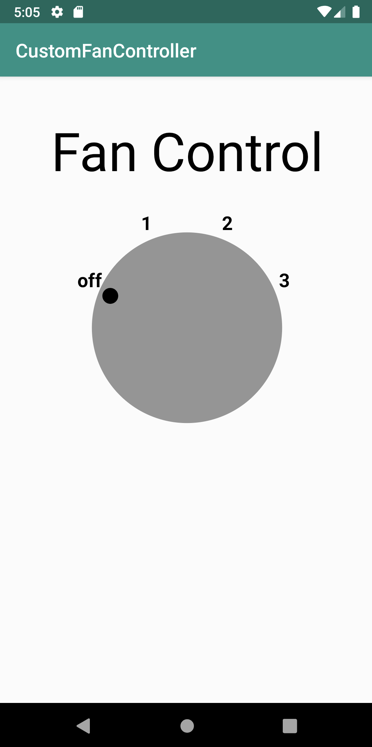
07. Exercise: Draw the Fan Controller
21 5 AAK Draw Custom View Slides-SC
Android Developer Documentation
- [onSizeChanged()](https://developer.android.com/reference/android/view/View.html#onSizeChanged%28int, int, int, int%29)
- onDraw()
- Canvas
- View
- PointF
- [drawCircle()](https://developer.android.com/reference/android/graphics/Canvas.html#drawCircle%28float, float, float, android.graphics.Paint%29)
- [drawText()](https://developer.android.com/reference/android/graphics/Canvas.html#drawText%28java.lang.String, int, int, float, float, android.graphics.Paint%29)
Exercise
In this exercise you are going to draw the fan controller custom view onto the screen.
- In the
DialViewclass, below the initializations, override the [onSizeChanged()](https://developer.android.com/reference/android/view/View.html#onSizeChanged%28int, int, int, int%29) method from the View class to calculate the size for the custom view's dial. Importkotlin.math.minwhen requested.
override fun onSizeChanged(width: Int, height: Int, oldWidth: Int, oldHeight: Int) {
   radius = (min(width, height) / 2.0 * 0.8).toFloat()
}
Below
onSizeChanged()add this code to define acomputeXYForSpeed()extension function for the PointF class.Import
kotlin.math.cosandkotlin.math.sinwhen requested. This extension function on thePointFclass calculates the X, Y coordinates on the screen for the text label and current indicator (0, 1, 2, or 3), given the currentFanSpeedposition and radius of the dial. You'll use this inonDraw().
private fun PointF.computeXYForSpeed(pos: FanSpeed, radius: Float) {
   // Angles are in radians.
   val startAngle = Math.PI * (9 / 8.0)
   val angle = startAngle + pos.ordinal * (Math.PI / 4)
   x = (radius * cos(angle)).toFloat() + width / 2
   y = (radius * sin(angle)).toFloat() + height / 2
}- Override the
onDraw()method to render the view on the screen with the Canvas andPaintclasses. Importandroid.graphics.Canvaswhen requested. This is the skeleton override:
override fun onDraw(canvas: Canvas) {
   super.onDraw(canvas)

}- Inside
onDraw()add this line to set the paint color to gray(Color.GRAY)or green(Color.GREEN)depending on whether the fan speed isOFFor any other value. Importandroid.graphics.Colorwhen requested.
// Set dial background color to green if selection not off.
paint.color = if (fanSpeed == FanSpeed.OFF) Color.GRAY else Color.GREEN- Add this code to draw a circle for the dial, with the [drawCircle()](https://developer.android.com/reference/android/graphics/Canvas.html#drawCircle%28float, float, float, android.graphics.Paint%29) method.
// Draw the dial.
canvas.drawCircle((width / 2).toFloat(), (height / 2).toFloat(), radius, paint)- This method uses the current view width and height to find the center of the circle, the radius of the circle, and the current paint color.
- The
widthandheightproperties are members of theViewsuperclass and indicate the current dimensions of the view.
- Add this code to draw a smaller circle for the fan speed indicator mark, also with the
drawCircle()method.- This part uses the
PointF.computeXYforSpeed()extension method to calculate the X,Y coordinates for the indicator center based on the current fan speed.
- This part uses the
// Draw the indicator circle.
val markerRadius = radius + RADIUS_OFFSET_INDICATOR
pointPosition.computeXYForSpeed(fanSpeed, markerRadius)
paint.color = Color.BLACK
canvas.drawCircle(pointPosition.x, pointPosition.y, radius/12, paint)- Finally, draw the fan speed labels (0, 1, 2, 3) at the appropriate positions around the dial. This part of the method calls
PointF.computeXYForSpeed()again to get the position for each label, and reuses thepointPositionobject each time to avoid allocations. Use [drawText()](https://developer.android.com/reference/android/graphics/Canvas.html#drawText%28java.lang.String, int, int, float, float, android.graphics.Paint%29) to draw the labels.
// Draw the text labels.
val labelRadius = radius + RADIUS_OFFSET_LABEL
for (i in FanSpeed.values()) {
   pointPosition.computeXYForSpeed(i, labelRadius)
   val label = resources.getString(i.label)
   canvas.drawText(label, pointPosition.x, pointPosition.y, paint)
}- Open
activity_main.xml.
To add a custom view to an app's UI, you specify it as an element in the activity's XML layout. Control its appearance and behavior with XML element attributes, as you would for any other UI element.
In
activity_main.xmlchange theImageViewtag for thedialViewtocom.example.android.customfancontroller.DialViewDelete the
android:backgroundattribute.
Both DialView and the original ImageView inherit the standard attributes from the View class, so there is no need to change any of the other attributes. The new DialView element looks like this:
<com.example.android.customfancontroller.DialView
       android:id="@+id/dialView"
       android:layout_width="@dimen/fan_dimen"
       android:layout_height="@dimen/fan_dimen"
       app:layout_constraintTop_toBottomOf="@+id/customViewLabel"
       app:layout_constraintLeft_toLeftOf="parent"
       app:layout_constraintRight_toRightOf="parent"
       android:layout_marginLeft="@dimen/default_margin"
       android:layout_marginRight="@dimen/default_margin"
android:layout_marginTop="@dimen/default_margin" />- Run the app. Your fan control view appears in the activity. If you click it, nothing happens.